Buying CAD CAM software often goes wrong when a company focuses on the license price first and only later thinks about data, post-processors and training. What really matters is whether the system can reliably connect design, manufacturing, inspection and, where relevant, scanning or reverse engineering.
TL;DR: Summary
- When choosing CAD/CAM software, check interoperability first: support for STEP (ISO 10303), IGES and native CAD formats, and real-world data exchange between CAD, CAM, CAE and CMM. This is where the most expensive mistakes happen during rollout.
- It is not enough that the software "opens" a file. Test whether it preserves geometry, units, assemblies, tolerances, PMI, layers and change management – ideally on your own part and your own CNC workflow.
- If you work with scans or legacy parts without a model, look closely at the mesh-to-CAD workflow. Tools such as QuickSurface Lite/Pro convert STL, OBJ and PLY into CAD and export to STEP and IGES.
- Training and support are not optional extras. Without role-based training for designers, CAM programmers and the shop floor, even a good CAD/CAM system ends up slow, inconsistent and expensive in practice.
- The true cost is not just the license. It also includes post-processors, data migration, validation of exchange formats, training, maintenance and the time your people spend moving to the new system.
The following eight questions will help you separate software that looks good in a sales demo from a solution that holds up in design, CAM programming and everyday production. The goal is not to find the "best" brand, but a system that fits your data flow, your people and the type of jobs you take on.
Why is interoperability the first filter when choosing CAD/CAM software?
Interoperability matters more than the price list. STEP according to ISO 10303 and native data from SOLIDWORKS or Inventor determine whether a model moves from design to CAM, CAE and CMM without losing information.
If CAD CAM software cannot pass a model on reliably, the result is manual fixes, duplicate versions and uncertainty on the shop floor. NIST notes that STEP is used to represent parts, assemblies and product and manufacturing information for exchange between CAD, CAM, CAE and CMM software. This is especially important where in-house teams, external suppliers and several software brands all work on the same data.
A common misconception is that the native format of one platform is enough. But if you work with subcontractors, metrology or customers outside your ecosystem, a neutral format is usually the safer choice. For more complex workflows it also makes sense to check the STEP variants AP242, AP203 and AP214, because not every importer handles PMI, tolerances and assembly structure the same way.
"4CAD solution combines CAD/CAM services with SOLIDWORKS training, 3D scanning, modeling and simulation."
That is exactly why the evaluation should cover more than the modeler and the CAM module – it should include the related services, too. When one company covers design, training, scanning and data conversion, the path from trial to production use gets shorter.
How do you verify STEP, IGES and native data support before you buy?
The right approach is a test on your own data. STEP AP242, IGES and native files must pass through the entire chain from CAD to CAM without manual repairs to critical features.
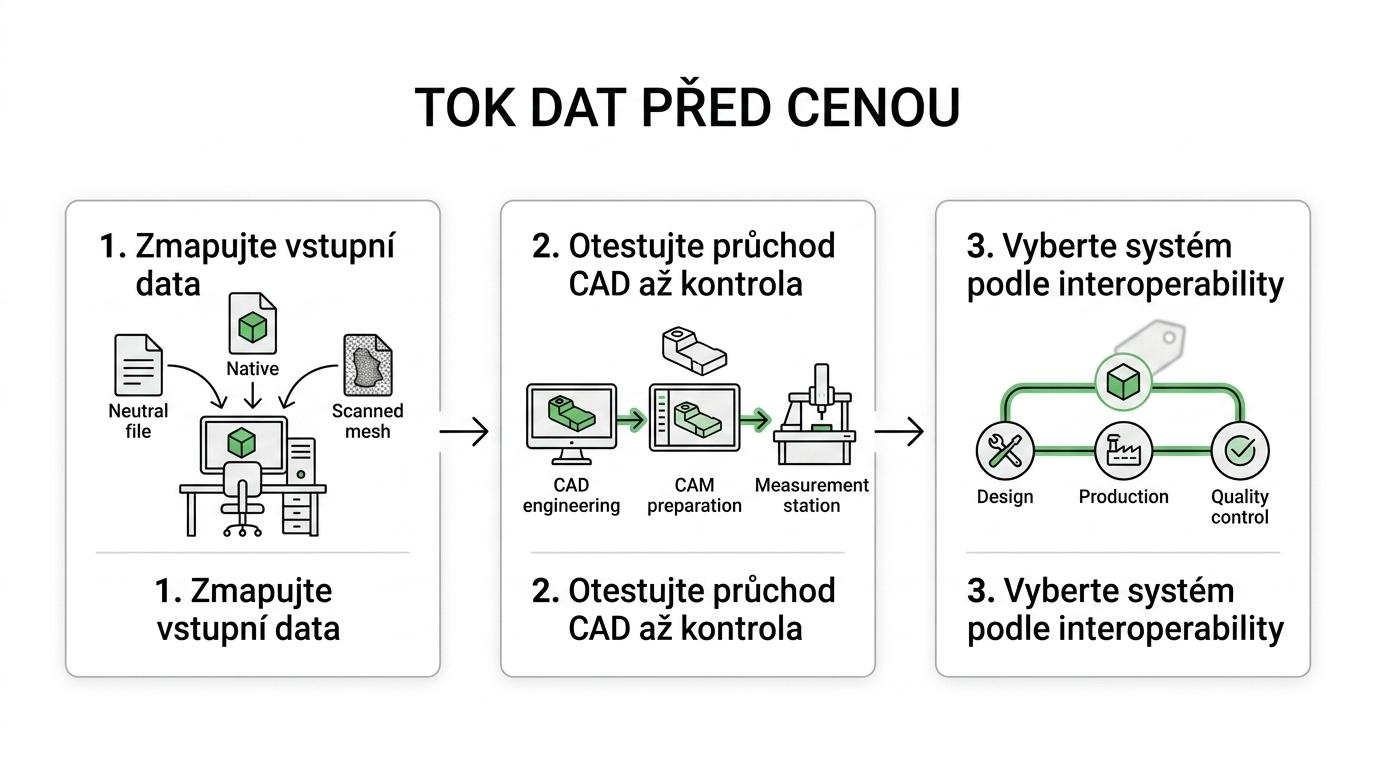
Start with a data map. List what goes into the system and what has to come out: native CAD files, STEP, IGES, DXF, STL, customer data, CAM output, exchange with metrology or archiving. If you have several plants or subcontractors, add software versions and language settings. This step often reveals that the problem is not modeling at all, but data exchange between departments.
Then comes the hands-on test. Open the same part as a STEP file and as a native file, and compare geometry, units, orientation, naming, assembly structure and any manufacturing information. If the vendor claims full compatibility, the software should also handle the change loop: open, modify, send back to CAM and regenerate the manufacturing data without breaking relationships.
Practical tip: don't just check whether the model displays. Check whether tolerances, PMI, machining edges, curves, holes, suppressed features and feature recognition for CAM are preserved. An import that runs "without errors" often turns out later to have flipped normals, gaps in surfaces or broken topology.
If scanning is part of your workflow, also verify the path from mesh data to CAD. For tools such as QuickSurface Lite or Pro, support for STL, OBJ and PLY and export to IGES and STEP is what counts, because that is where it is decided whether a scan serves only as a reference or as a real basis for manufacturing.
What are the most common CAD/CAM software combinations in Czech companies?
The most common combinations depend on the type of production. SOLIDWORKS, Inventor, QuickSurface, CAM modules and automation tools are combined differently for one-off production, series production and reverse engineering.
This is not a ranking of the "best" solutions. These are typical setups that make sense depending on your data, people and production goals.
- 4CAD solution + SOLIDWORKS + related tools: A good fit where a company wants to combine design, CAM, training, 3D scanning, simulation and, if needed, design automation or reverse engineering under one supplier.
- SOLIDWORKS + a specialized CAM module: A frequent choice in mechanical engineering and job-shop manufacturing, where fast work for the designer and a direct link to CNC are the priority.
- Inventor or the Fusion ecosystem: Makes sense for teams that want closer cloud-based collaboration or already have their data and processes built on the Autodesk platform.
- QuickSurface + your existing CAD/CAM: A practical combination for companies dealing with legacy parts without documentation, mold repairs, castings or fast scan-to-CAD conversion – and often reverse engineering as well.
- CAD + an automation layer such as DriveWorks or CustomTools: A strong choice for repeat orders, configurators and generating variants, BOMs and drawings.
A good rule of thumb is simple. If you build similar variants over and over, ask about design automation. If you take over third-party data or old parts, ask about interoperability and reverse engineering. And if you sell a job before the details are drawn, look at CPQ and configuration as well. For a broader view of design automation, the resources on Techcad.cz can also be useful.
How do you compare cloud and on-premise CAD/CAM solutions?
Choosing between cloud and on-premise is not a matter of ideology. Cloud CAD/CAM wins on availability and collaboration, while on-premise installation wins on data control, performance and predictability with heavy assemblies and CAM calculations.
If you work in smaller teams across several locations and share data with customers frequently, the cloud will significantly speed up reviews, comments and data access. But if you deal with large assemblies, sensitive know-how, custom post-processors or a production network with limited internet access, a local setup is usually the safer bet. That is why a hybrid model often works best for many companies: CAD/CAM installed locally, with the cloud used for reviews, approvals or configuration.
The decision still comes down to infrastructure and the type of work, not marketing slogans. A common misconception is that the cloud is automatically cheaper. For a smaller team that may be true, but in complex manufacturing you have to add the costs of access management, data transfer, integrations and security policies.
- Cloud CAD/CAM: fast start, remote collaboration, dependent on connectivity
- On-premise installation: data control, stable performance, higher demands on administration and hardware
- Hybrid model: a sensible compromise for companies with both production and distributed sales
How do you test CAD CAM software step by step on your own part and CNC process?
The most reliable method is a pilot on one real part. A CNC post-processor and a real model tell you more than an hour-long presentation or a sample database.
Step one: choose a representative part. It should be neither too simple nor an extreme exception. Ideally, it is a part that exposes the typical problems in your daily work: a customer import, multiple operations, a revision change, a drawing, a bill of materials or a link to inspection.
Step two: run the entire process from import to NC program. Watch how quickly you get a model that is usable for manufacturing, how the software recognizes features, how it behaves when the geometry changes and whether the post-processor is stable. If everything has to be regenerated by hand after a small change, that is a warning sign.
"4CAD solution provides professional CAD/CAM services, expert design support and training in CAD/CAM software."
Step three: evaluate the pilot on data, not on gut feeling. Measure the number of manual interventions, the number of exports between systems, the CAM programmer's time, how clear the output is for CNC operators and the quality of change management. If the pilot only holds up in CAD but fails in CAM or the post-processor, the solution is not the right one.
Practical tip: the test must involve a real operator, CAM programmer and designer. If only sales or only IT evaluates the software, they overlook details that will slow down production every single day.
How can you tell whether software handles reverse engineering and scan data?
For reverse engineering, importing mesh data is not enough. QuickSurface and STEP/IGES export become important when you need to turn a scan into an editable CAD model for CNC machining or documentation.
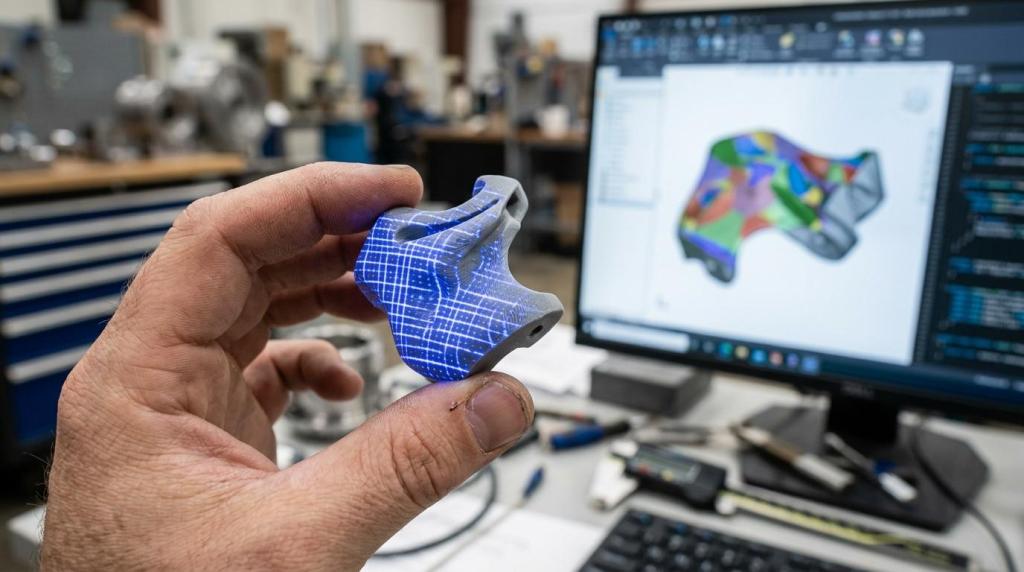
First, be clear about what you expect from the scan. If you only need a visual check of the shape, a point cloud or mesh reference will do. But if you want to repair a mold, make a replacement part or bring an old component into a standard CAD workflow, you have to go further: clean up the mesh, close defects, extract sections, create surfaces or a parametric model and export it to a neutral format.
This is the key difference between "can open an STL" and "can work with a scan for manufacturing". QuickSurface Lite is designed for converting scan data into CAD models, supports STL, OBJ and PLY and exports to IGES and STEP. That matters, because CAM and other CAD systems usually don't want a raw mesh – they want usable geometry.
If you also digitize larger facilities or buildings, it makes sense to keep two worlds apart. For parts and tooling, focus on mesh-to-CAD. For halls, equipment and as-built conditions, LiDAR and point clouds are the better fit – for example from FJD Trion SLAM scanners, which are well suited to capturing reality quickly on the move. A common misconception is expecting one tool to handle small mechanical parts and entire production lines equally well.
What makes training and adoption succeed in design and production?
Success is not determined by the software alone, but by how it is rolled out. SOLIDWORKS training and internal SOPs work better than a one-off presentation that has nothing to do with your parts and processes.
Training split by role delivers the best results. Designers need modeling, change handling, libraries and drawings. CAM programmers deal with machining features, the link to CAM and post-processors. Production managers need to see how the system shortens lead times and reduces manual corrections. When everyone sits in the same course, part of the team is bored and part can't keep up.
The second factor is standardization. Without internal rules for file names, templates, data structures, STEP export and revision handling, even an excellent tool quickly falls apart into local habits. This is where a partner who delivers not just the license but also an implementation methodology and expert design support is valuable.
"4CAD solution provides SOLIDWORKS training, 3D scanning and modeling and simulation as one integrated package."
Practical tip: ask for training on your own files and internal procedures. It shortens the distance between "we know where to click" and "we can deliver the job". And if your company is also considering configuration automation, it pays to combine CAD/CAM training with DriveWorks or CustomTools from the start – not after a year in operation.
How do you calculate the true cost of licenses, implementation and support?
The true TCO goes well beyond the license. For CAD/CAM software, post-processors, data migration, training and support often have a bigger impact than the purchase price itself.
Ask about the entire lifecycle of the system. How much do the license and maintenance cost – but also how much does it cost to introduce templates, adapt post-processors, validate STEP exchange, migrate old projects, set up PDM or train new people? If the software requires frequent manual fixes to imports or awkward workarounds for revisions, you pay for it every week in your team's time.
Consider growth scenarios, too. If you are buying only CAD today and will want CAM, reverse engineering or quote automation in six months, ask about scalability up front. A cheaper start can be the right choice as long as it doesn't close the door on future integration. On the other hand, a "fully loaded" package from day one makes no sense if the team isn't yet practicing even basic data discipline.
After the initial comparison, it pays to list the cost items separately so that none of them drop out of the decision.
- licenses and maintenance
- post-processors and their customization
- training and your people's internal time
- data migration and format validation
- support, consulting, methodology
- extensions for scanning, reverse engineering or automation
If two offers then look similar on price, the quality of implementation and support is often the deciding factor. In design and manufacturing, a cheaper system without a proper methodology sometimes ends up costing more than a more robust solution that is introduced well into everyday practice.