
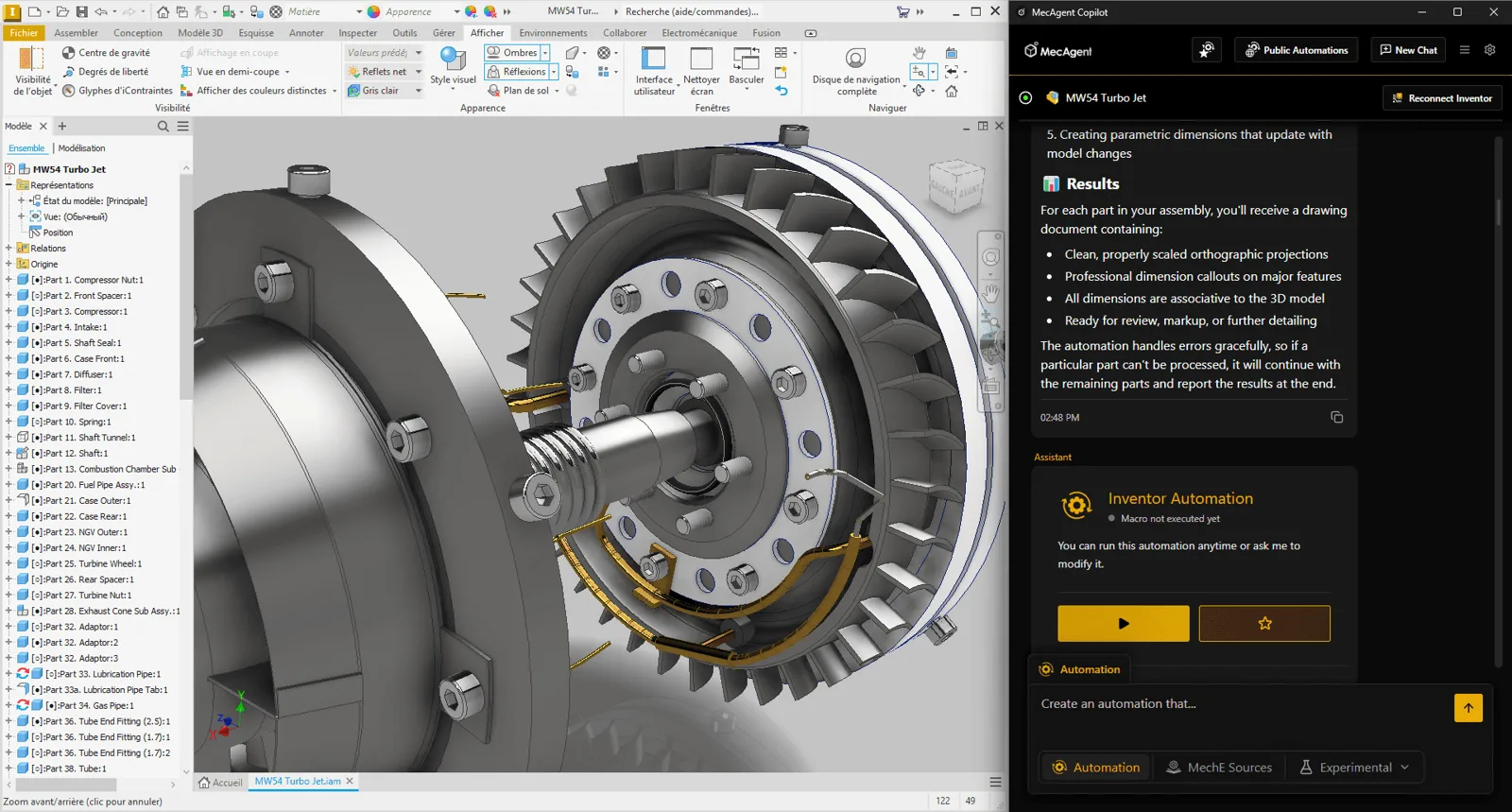
Many design teams today are not looking for yet another standalone piece of software, but for a smarter way of working in the tools they already use. This is exactly where AI for CAD makes a lot of sense.
MecAgent focuses on assistance and automation in the design workflow. Instead of clicking through menus, hunting for commands or writing macros from scratch, you describe the task in natural language and move part of the routine straight into the CAD environment.
For companies working in SOLIDWORKS or Autodesk Inventor, this is an interesting shift. Not because of the buzzword AI, but because of time, standardisation and less dependence on whoever happens to know VBA or the API.
What MecAgent is and how it fits into the CAD workflow
MecAgent is a product for automating repetitive tasks and assisting with work in CAD applications. The available information shows that it focuses mainly on SOLIDWORKS and Autodesk Inventor, where it builds on the existing macro, VBA and API capabilities.
That matters. It is not an isolated chatbot sitting next to the design system, but a tool tied to real CAD functions. The user enters a request in plain language and the result can be a macro, a helper procedure, input for a drawing or another action that matches what the system can do.
This approach is close to how companies want to automate CAD today: without lengthy development of in-house utilities, but also without losing control over what happens in the model or the documentation.
Which CAD software MecAgent connects to today
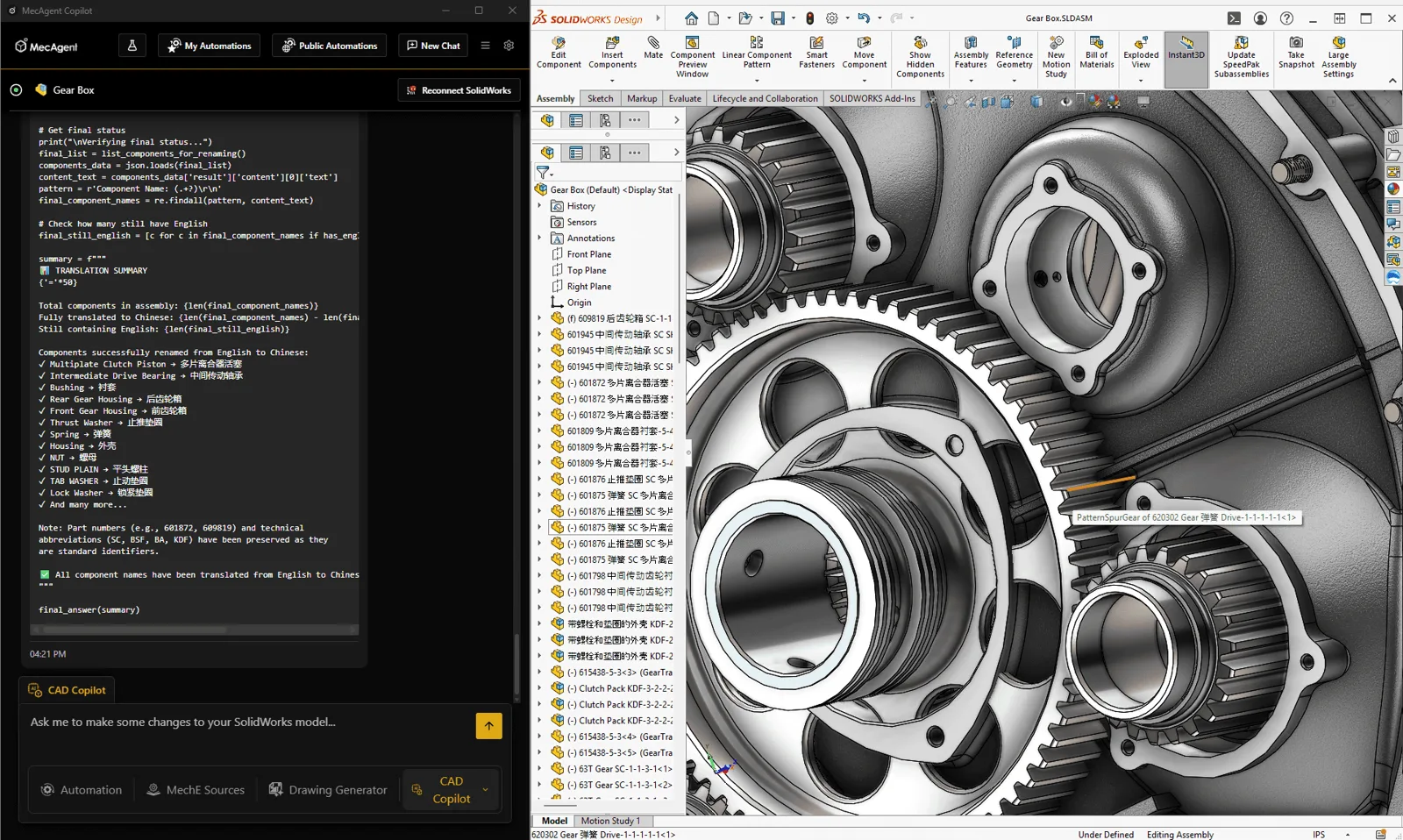
Based on the described functions and available materials, two platforms matter most today: SOLIDWORKS and Autodesk Inventor. For both systems the connection is realistic from a technical point of view too, because their official documentation confirms support for macros, VBA and open APIs.
SOLIDWORKS has long allowed you to record, run and edit macros in its built-in VBA. Autodesk Inventor also has VBA integrated and uses it to customise the environment and connect to other data and applications. This is exactly the kind of integration MecAgent is built on.
In practice this means the AI does not bypass the CAD system, but relies on mechanisms that are standard and proven in these systems.
[markdown] | CAD software | Type of technical connection | What it means in practice | | --- | --- | --- | | SOLIDWORKS | VBA, macros, SolidWorks API | generate and run automated steps directly in the CAD environment | | Autodesk Inventor | VBA, Inventor API | automate routine tasks and customise work without manual programming | | Other CAD systems | not publicly described as a current standard | best verified individually for the specific scenario | [/markdown]For deployment it is wise to stick to this reality. If a company uses SOLIDWORKS or Inventor, MecAgent gives a clear direction. For other CAD platforms it makes sense to check the current state of support first.
Overview of MecAgent features for design and documentation
4CAD states that MecAgent covers six functional areas, some of which are in production and some in beta. For users, the impact on their work matters more than the internal label of a feature.
MecAgent targets tasks that eat up time in design almost every day: repetitive commands, preparing drawings, technical questions, finding standard parts and turning a text description into a 3D format.
- Macro generation: turning a text description into a macro for CAD operations
- AI drawings
- Technical assistant: quick answers about features, procedures and working in CAD
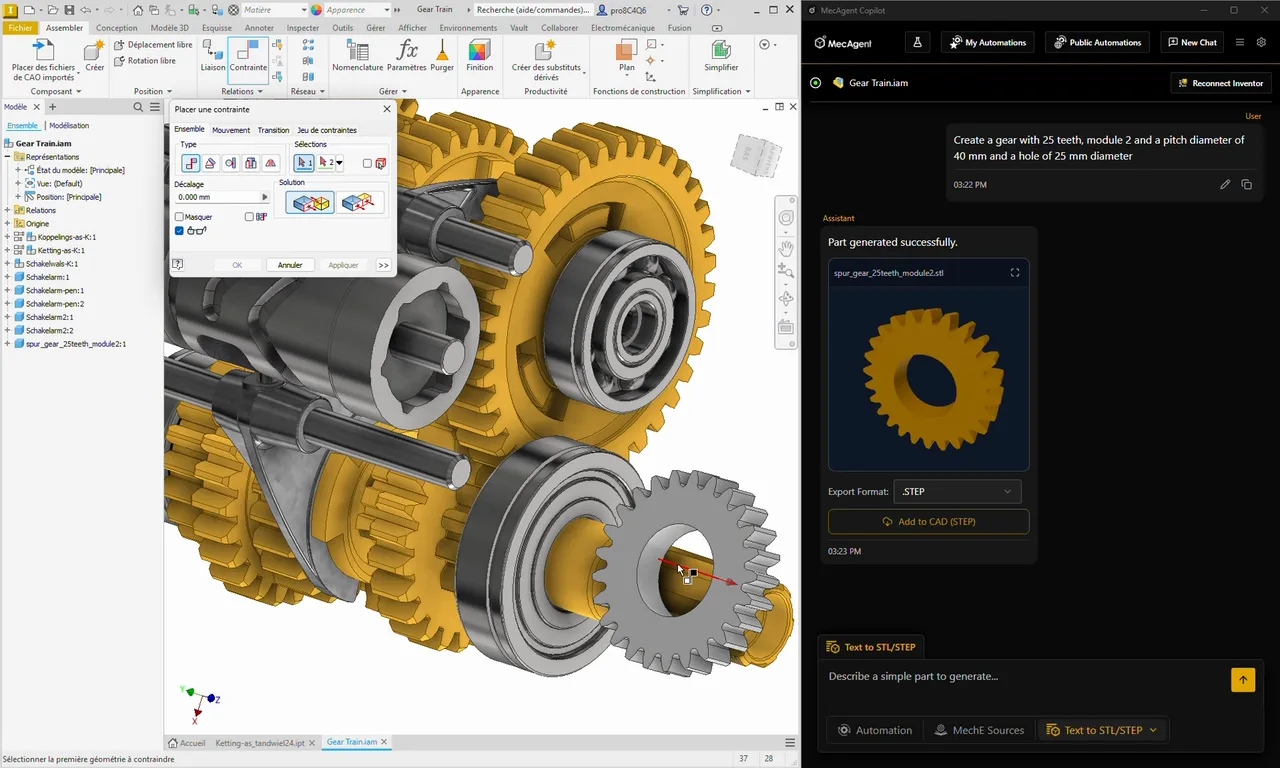
text-to-STEP/STL- CAD copilot: help with modelling and the next steps of your work
- searching for standard parts in online catalogues
It is the combination of these areas that makes it interesting. Most tools solve only one part of the problem, such as a chat over documentation or isolated automation. Here, help with decisions is connected with actually carrying out the task.
Generating CAD macros from natural language
One of MecAgent's strongest features is the ability to create CAD macros from a text description. For design departments this is very practical, because many automation ideas never make it into production simply because there is no time for a programmer or an in-house API specialist.
The user can describe the task in their own words. Instead of writing VBA code by hand or searching for the right API methods, they get a basis for running the action in the CAD system. According to 4CAD, such a macro can also be used as a custom button in the CAD environment, which turns it into an everyday working tool rather than a one-off experiment.
This also matters for standardisation. Once a frequently repeated procedure has been turned into usable automation, the whole team can use the same procedure.
The official SOLIDWORKS help itself recommends recording a macro as a quick way to get started with the API. MecAgent takes this principle one step further, because it also simplifies creating the macro in the first place.
AI drawings and technical questions in everyday practice
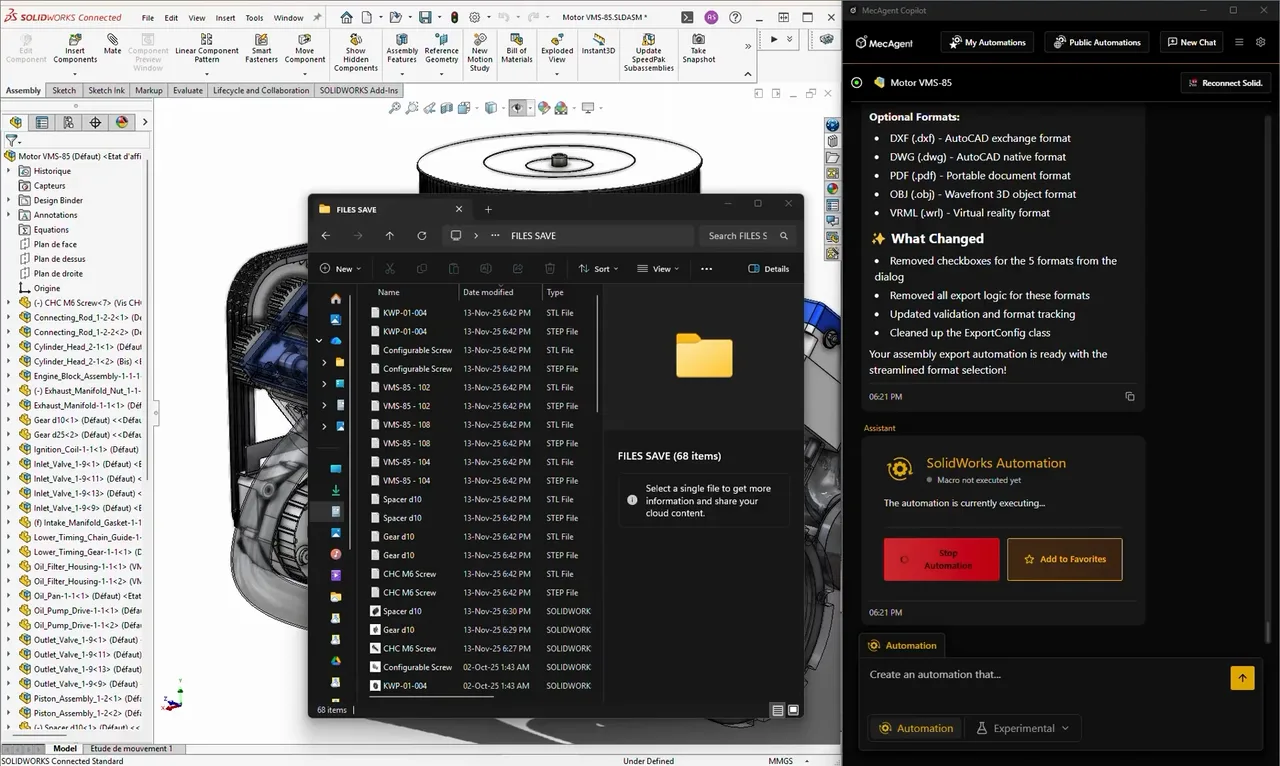
In many companies the bottleneck is not 3D modelling itself, but the documentation that follows. Drawings, notes, repeated edits and checking the procedure often swallow more time than it seems at first glance.
This is where AI support for drawings and the technical assistant come in. The designer does not have to switch between CAD, the help, internal notes and web searches. Instead, they can ask a specific question and get an answer close to the context of their work.
The benefit is not just speed.
It also means fewer errors in routine tasks and faster onboarding of less experienced colleagues who do not yet know all the shortcuts, procedures and settings. In teams with several branches or external collaborators, it helps keep a similar standard of work across projects.
Text-to-STEP/STL, CAD copilot and part search
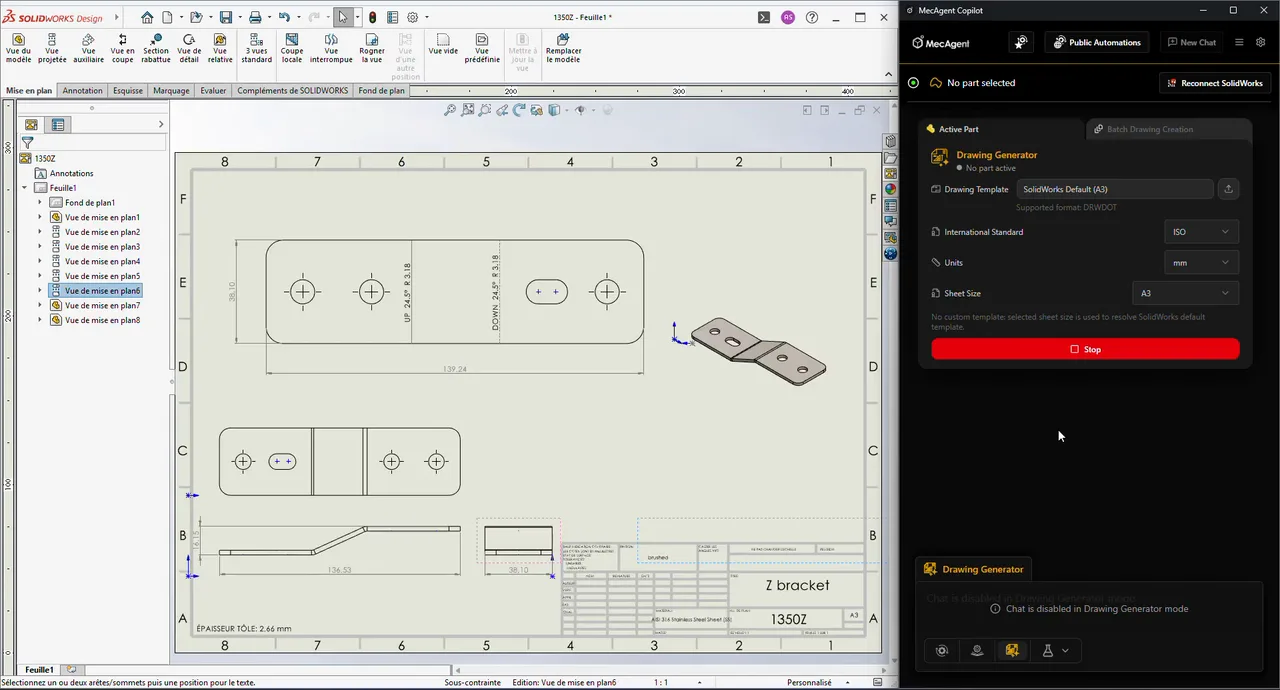
Features that go beyond macros are interesting too. These include text-to-STEP/STL, the CAD copilot and searching for standard parts in online catalogues.
text-to-STEP/STL points in a direction that can be interesting mainly for quick concepts, checking shapes or preparing a basis for further editing. It is not a replacement for a full design methodology, but it can shorten the first phase of the work.
The CAD copilot makes sense where decisions about the procedure are being made. The designer does not just deal with a command, but with the question of how to reach the result more efficiently. That is the difference between ordinary help and a genuinely useful assistant.
Searching for parts in online catalogues helps with a basic design discipline: do not redraw what already exists as a standard. When work with standard components gets faster, it shows in modelling, documentation and communication with purchasing.
Why a connection via API and VBA matters so much for companies
AI in CAD makes the most sense when it is tied to a stable technical interface. Both SOLIDWORKS and Inventor have such a link.
The SOLIDWORKS API contains a wide range of functions callable from several languages and supports working with macros. Autodesk Inventor has VBA integrated directly and allows you to customise the working environment and connect to other applications. This is not a detail for developers, but the foundation for trust in the whole automation process.
For management and design leads, this is good news. Automation then does not rely on improvisation, but on interfaces that are part of commonly used CAD systems.
- less time spent on routine operations
- less dependence on a single in-house specialist
- better repeatability of procedures
- Faster onboarding: new users reach results with fewer barriers
- More standardisation: the same tasks are solved in the same way
- Better use of CAD licences: less time goes into auxiliary tasks
Where MecAgent brings the most value in design companies
It makes the most sense where similar tasks are repeated often. Typically these are manufacturing companies with variant design, mechanical engineering teams with many similar parts, production engineering departments or companies that want to tighten their internal standards without costly development of their own tools.
It also suits teams that have been thinking about automation for a while but have not yet found the right starting point. The traditional path tends to look like this: first the repetitive tasks are listed, then someone is sought to write the macros, then priorities are discussed and finally the project is shelved. MecAgent can lower this first barrier.
The relationship to other tools in the 4CAD Solution portfolio is interesting as well. Where assistance and one-off automation are not enough, broader design automation follows with DriveWorks, data management and standardisation with CUSTOMTOOLS, or further CAD know-how at Techcad.cz. So MecAgent does not have to stand alone, but can be part of a wider digital workflow.
What deploying MecAgent can look like in practice
It is best to start with a small but well-chosen scenario. Not with dozens of requirements at once.
Tasks that are repeated several times a week and have a clearly measurable output work very well. For example, automating a specific sequence of commands, speeding up the creation of a certain part of the documentation or simplifying access to standard parts.
- Pick 3 to 5 repetitive CAD tasks with the biggest time loss
- Check whether the team works in SOLIDWORKS or Inventor and which standards it uses
- Run a pilot with a small group of users
- Evaluate time savings, error rate and usability of the outputs
- Extend the deployment to further design scenarios
Setting expectations is also important. MecAgent is not a replacement for a designer. It is a work accelerator that helps with routine tasks, shortens the path to results and makes automation accessible to a wider group of users.
What to look for when choosing an AI tool for SOLIDWORKS and Inventor
When evaluating similar tools, it pays to look less at the marketing and more at practical questions. Is the connection to CAD clearly described? Does the tool solve real company tasks? And can it work where the team already works today?
MecAgent is interesting in this respect precisely because its described features target specific design needs: macros, drawings, technical assistance, fast 3D outputs and working with standard parts. These are areas that can be tested sensibly and evaluated fairly quickly.
If a company is looking for a first usable step towards AI in CAD, it is more practical to start with a tool that helps with real tasks in SOLIDWORKS or Inventor than to wait for an abstract "smart future". This is about concrete work, concrete clicks and concrete minutes that can be saved.
You will find more real examples on the MecAgent features page and pricing on the MecAgent page.


