
Choosing a SOLIDWORKS license has a bigger impact than it might seem. It is not just about price, but about who will use the software, on how many devices, how often, and whether the license needs to work for sharing across a team.
Summary
- For most companies, the right SOLIDWORKS license comes down to three criteria: the number of users actually working at the same time, the need to access the software from multiple devices, and the requirement for ongoing updates and support.
- A Single User License suits one designer who signs in securely from several devices, and is typically offered for a quarterly or annual term.
- A Device License makes sense for one specific workstation, as any user can use it on a single device; it typically applies to SOLIDWORKS Design with Cloud Services.
- A Perpetual License with Subscription Services is the right choice when you want long-term license stability together with new versions, upgrades, technical support and access to MySolidWorks training.
- If several people share a license, a floating model via the SolidNetWork License Manager is used – but the server and client workstations must be set up correctly, and add-ins come with their own checkout and borrow rules.
- Before buying, always check related needs as well, especially CAM, Visualize, training, automation such as DriveWorksXpress, and future team growth.
This is exactly where costly mistakes happen. A company buys a cheaper model, only to find it does not suit working on a laptop, shared workstations, add-ins or the future growth of the design team.
What does a SOLIDWORKS license mean today?
SOLIDWORKS and 3DEXPERIENCE now distinguish licenses by user, by device and by length of access. In practice, you choose between a Single User License, a Device License and a Perpetual License with Subscription Services.
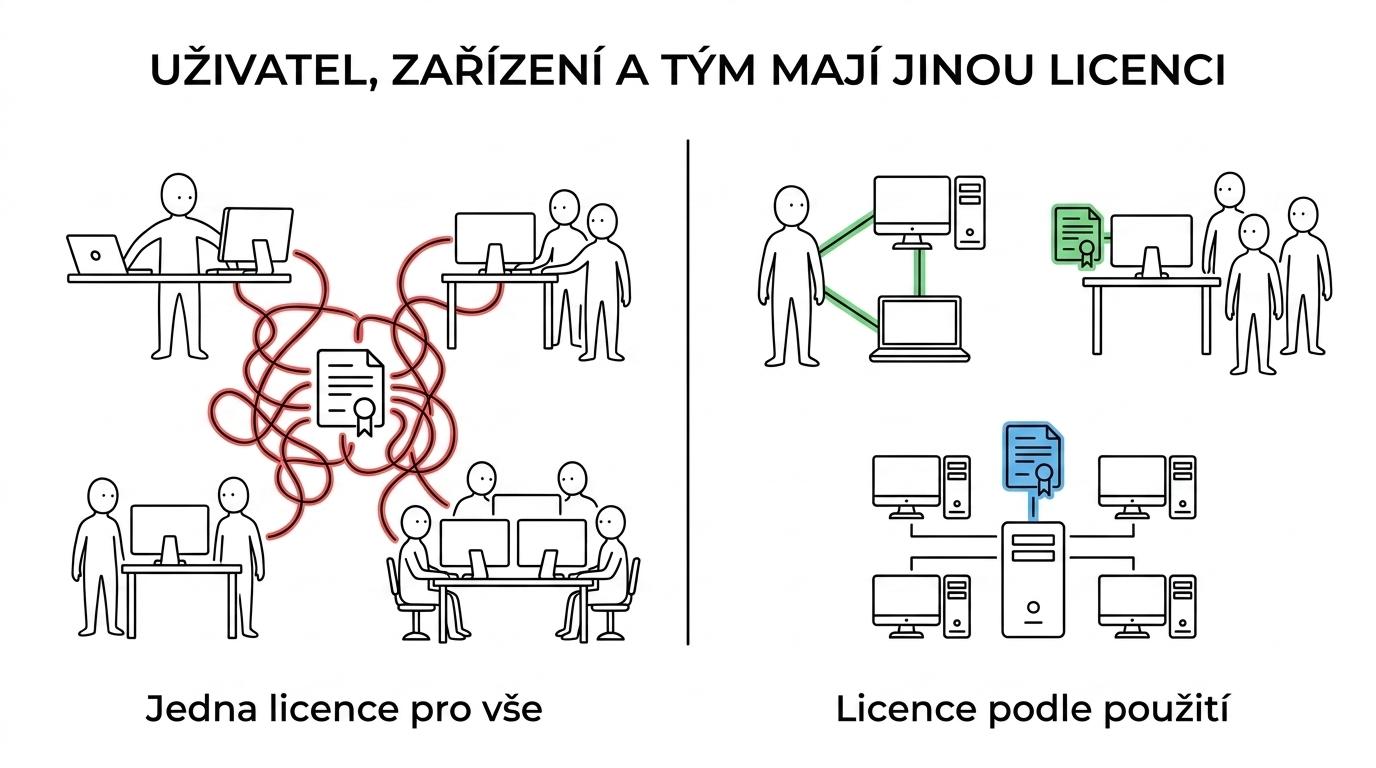
In the past, the choice was often reduced to “perpetual or network”. Today it is more accurate to ask whether the software belongs to a specific person, a specific workstation, or should be shared among several users. That is what determines how it works in the office, when working from home and on business trips.
It is just as important to separate the license itself from the services around it. Subscription Services are not just a formal line item on the invoice. They include new versions, upgrades, technical support from a local partner and access to MySolidWorks training. For Professional and Premium, an active subscription also unlocks SOLIDWORKS Visualize and SOLIDWORKS CAM Standard.
So you are not only deciding on the CAD core, but also on which add-ons and services come with the license. A typical example is DriveWorksXpress, which is included free of charge in every SOLIDWORKS license and is, for many companies, the first step toward design automation.
“4CAD points out that DriveWorksXpress is included free of charge in every SOLIDWORKS license.”
What is the difference between a Single User License and a Device License?
A Single User License and a Device License are not interchangeable. Single User is tied to a user, a Device License to a specific computer.
A Single User License makes sense where one designer switches between a workstation, a laptop and a home computer. According to the official SOLIDWORKS description, it is a model with a quarterly or annual term and secure access from multiple devices. So if someone genuinely works across different hardware, it is usually the cleanest choice.
A Device License follows a different logic. It is available for SOLIDWORKS Design with Cloud Services and can be used by any user, but only on one device. That makes it a good fit for a shared workstation, a training room, an inspection station or a terminal on the shop floor.
A common misconception is that a Device License is a “cheaper multi-user license”. It is not. You are simply moving the link from a person to a machine. If users move between a laptop and a desktop, a Device License tends to be a limitation rather than a saving.
Which SOLIDWORKS license options make the most sense in practice?
Most companies end up with one of four or five realiztic scenarios. What matters is not the marketing name, but how the company actually operates.
- Guided selection with 4CAD solution s.r.o.: useful when you are deciding on the license, training, CAM, automation and future team growth all at once.
- Single User License: ideal for one designer who works on several devices and needs simple sign-in management.
- Device License: suited to a shared workstation, classroom or workplace where people change, but the hardware does not.
- Perpetual License with Subscription Services: makes sense for companies that want to own the license long term while getting new versions and support.
- Floating model via the SolidNetWork License Manager: a practical choice for several users who do not work in SOLIDWORKS at the same time.
Practical tip: do not just count the number of employees in your design department. Count how many people will actually be modeling, opening assemblies or using add-ins at any one time. That is often the difference between an unnecessarily expensive setup and an efficient one.
When is a perpetual license with Subscription Services the right choice?
A perpetual license with Subscription Services makes sense when you want long-term certainty and do not want to miss out on new SOLIDWORKS versions and support.
The key to the decision is the time horizon. If you know SOLIDWORKS will be a core tool for your team for years, the perpetual model is usually the logical choice. If, on the other hand, you are dealing with a short-term project, rapid growth or a fluctuating number of designers, term models may be more flexible.
Subscription Services are not a minor extra. According to official information, they provide immediate access to new versions, upgrades, live technical support from a local reseller partner and access to MySolidWorks, with more than 400 on-demand training videos. For SOLIDWORKS Professional and Premium, an active subscription also unlocks Visualize and CAM Standard. That is why it makes little sense to separate the license from training and support.
“4CAD offers SOLIDWORKS training led by certified experts.”
A common mistake is to believe that you lose nothing important without an active subscription. But if you need compatibility with your customers' latest data, more secure updates and fast help when something goes wrong, the value of the subscription grows very quickly.
How do I choose a license for a single designer?
For a single designer, it is best to start with how they work, not with the price list. A Single User License is usually right if the same person signs in from several devices.
Step 1 is to describe where and how the user works. If they switch between an office desktop, a laptop and occasionally a home office, a user-based license is usually a more natural fit than a device-based one. If they always sit at the same workstation, a Device License may also be an option, but only for the relevant product variants.
Step 2 is to check whether basic CAD is really enough. If you already know you will need CAM, rendering, data management, automation or more frequent technical support, choose the license and edition with these requirements in mind.
Step 3 is to decide on support and training. This is the worst place to cut costs. One experienced designer without support often costs the company more than a well-chosen license with a subscription and fast onboarding.
How do I proceed when several users in a team share a license?
For a team, the key is to measure concurrent use. If five people need SOLIDWORKS, that does not necessarily mean you need five concurrently active licenses.
Step 1 is to map peak usage. Over two to three weeks, track how many users are actually working in models, assemblies or drawings at the same time. If shifts alternate or some people do reviews rather than active modeling, a floating model can offer significantly better economics.
Step 2 is to distinguish between a shared workstation and a shared license. A shared workstation usually points to a Device License. A license shared among several people on different workstations points to SNL, the SolidNetWork License Manager.
Step 3 is to think about day-to-day discipline. If users leave SOLIDWORKS open all day for no reason, the floating model loses part of its advantage. Practical tip: set a simple internal rule that inactive users release their license as soon as they move on to other work.
How does the SolidNetWork License Manager work – and what often causes confusion?
The SolidNetWork License Manager is a server tool for floating licenses. The server holds the licenses, and client computers request one when SOLIDWORKS starts.
This has several practical implications. The server software is installed and activated only on the computer running the license manager. Client workstations then connect to this server to obtain a license. For the IT department, this means keeping an eye on server availability, network communication and basic administration of the environment.
A common misconception is that a floating license automatically handles any kind of remote work without rules. It does not. The company needs clear rules on how clients reach the license server and how working outside the office will function. This is best planned together with your reseller and IT.
Another often underestimated detail is borrow and checkout. If a user needs to work temporarily without the usual connection to the server, check in advance exactly what can be borrowed and how add-ins behave.
How should I handle add-ins, CAM, Visualize and other extensions?
Add-ins in SOLIDWORKS are not just optional extras. With CAM, Visualize or specialized modules, they often determine whether the license covers your entire production workflow.
If you have an active subscription and use SOLIDWORKS Professional or Premium, you also get access to Visualize and CAM Standard. This matters especially for companies that want to handle model presentation or basic production preparation alongside design. Not every company needs a separate CAM ecosystem straight away.
With the SNL model, watch out for the technical details. The official SOLIDWORKS documentation states that to check out an add-in license, you must first check out a SOLIDWORKS Design license. And if you want to borrow an add-in license, you must borrow both the SOLIDWORKS Design license and the license for the relevant product. The common idea that “I'll just borrow CAM” is therefore wrong.
It is also worth not overlooking small tools with a big impact. DriveWorksXpress is included in every SOLIDWORKS license and can be a great help with repetitive configurations, simple rules and initial design automation.
How can I check support, training and future expansion before ordering?
Before ordering, it is best to write down three areas: operations, growth and integration. Without them, you are only choosing half a license.
Step 1 is to ask for the exact configuration of the quote. “SOLIDWORKS for a designer” is not enough. You need to know whether it is a Single User License, a Device License or a perpetual model, which edition it is and exactly what the subscription includes.
Step 2 is to check support and onboarding. Ask who handles technical questions, how activation works, what training is available and how things will be handled when a computer is replaced or the team grows.
Step 3 is to think one step ahead. If today you only need modeling but in six months you want CPQ, configuration automation, CAM or a link to data management, it is worth looking at related topics on 4CAD and Techcad.cz too. That is often where it becomes clear that the right license is not an isolated decision, but part of a wider CAD process.
What most often goes wrong when choosing a SOLIDWORKS license?
The most common mistakes are predictable. Most of them happen because a company buys a license based on its name rather than on how people actually work.
- Headcount instead of concurrency: the company buys as many licenses as it has designers, even though only part of the team works at the same time.
- Confusing user and device: Single User and Device License solve different problems, yet they are often compared on price alone.
- Underestimating the subscription: without active services you may miss new versions, technical support, MySolidWorks and related tools.
- Ignoring add-ins: CAM, Visualize and other modules have their own rules, especially in an SNL environment.
- No training plan: the software is deployed quickly, but the team does not use even the basic functions and automation.
The practical tip to close this decision is simple. If you are unsure, do not start by asking “how much does the license cost”, but “who will actually work in SOLIDWORKS, where, for how long and with which add-ons”. These four facts usually lead to the right decision in the very first round.